Four quick screens take your device from unboxed to fully registered. Follow them in order — this guide shows exactly what each screen is for and what to do on it.
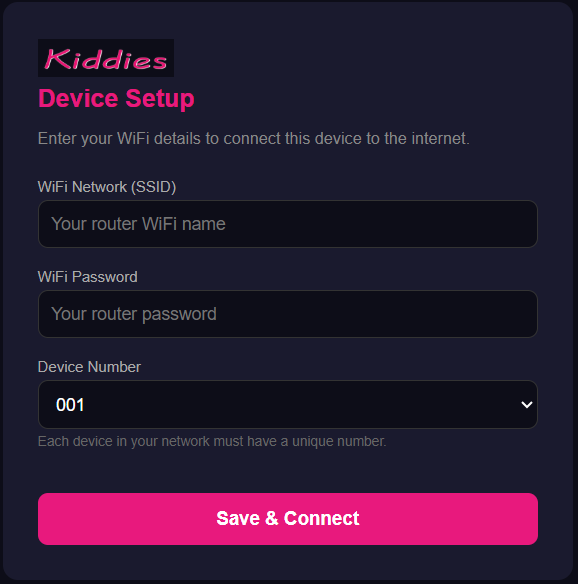
This is the very first thing a new (or freshly reset) device asks for: your home or venue WiFi details, plus a Device Number so multiple units in the same location don't clash.
Connect your phone to the device's WiFi network first, then open this page.
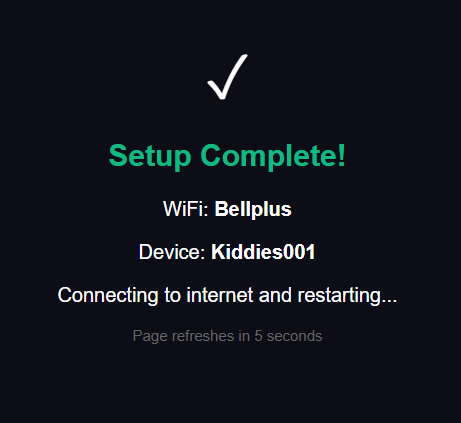
Confirms the WiFi name and Device Number it captured, and lets you know it's now restarting to join your real network.
Nothing — just wait about 30–60 seconds.
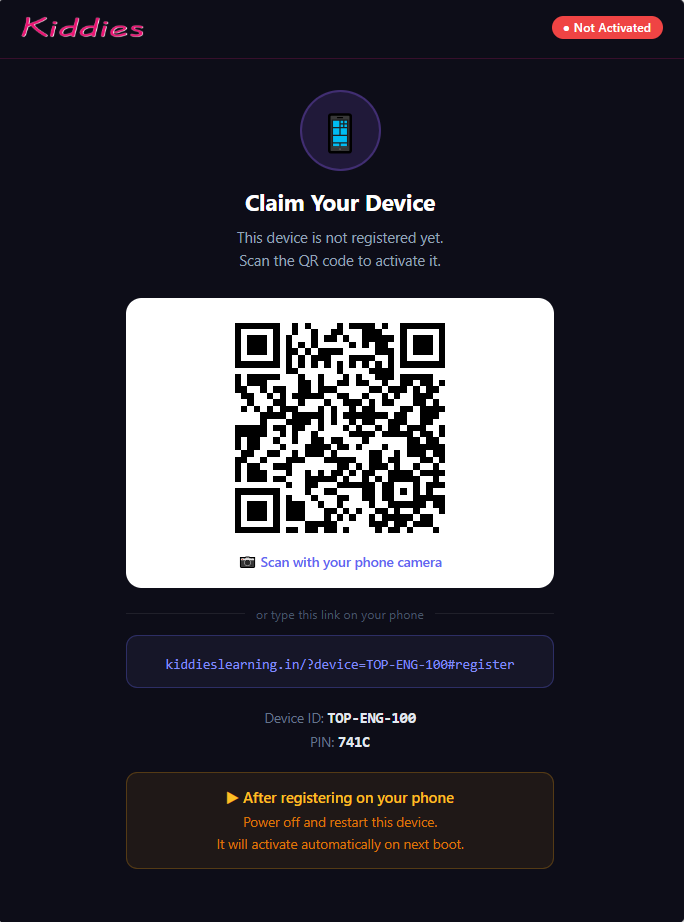
This is the "please register me" screen. It shows a QR code, a typed link, your Device ID, and a 4-character PIN.
Choose whichever is easiest for you:
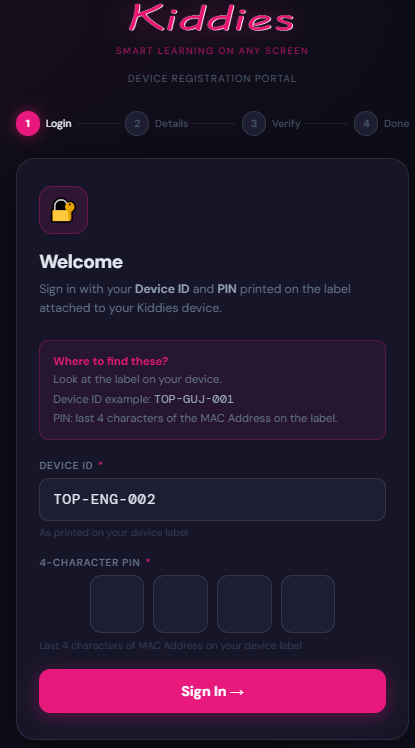
Step 1 of a short 4-step wizard (Login → Details → Verify → Done). This step confirms your device's identity before you enter your own information.
Your Device ID is usually already filled in for you.
After signing in, you'll move through three more short screens:
Simply follow the on-screen instructions and fill in all the mandatory fields as required on each screen. Once you reach Done, power off and restart your device — it will activate automatically on its next boot.
If any screen doesn't match what you're seeing, or the device won't move to the next step, our support team is happy to help.
Visit Help & FAQ